What Kobo e-readers open natively—and why EPUB is safer than legacy MOBI
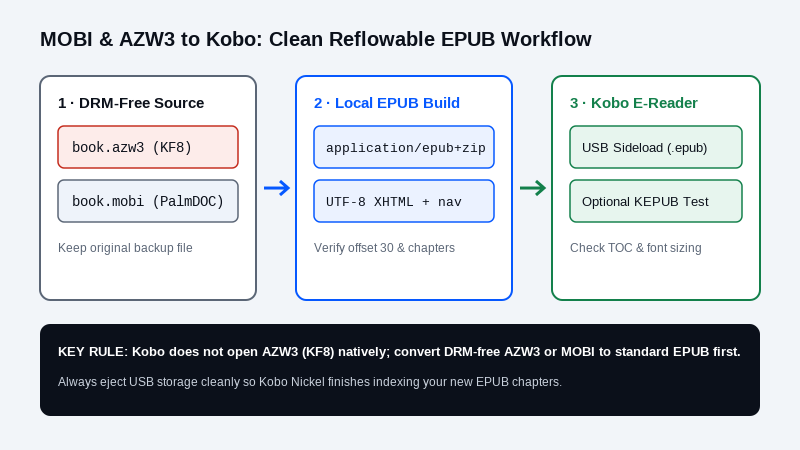
Kobo e-readers (including Clara, Libra, Sage and Elipsa) are built primarily around EPUB, Kobo EPUB (KEPUB), PDF, FB2, TXT and comic archives (CBZ/CBR). While Kobo's official specifications list basic legacy .mobi support on many models, AZW3 (KF8) and KFX are Amazon-specific containers that Kobo firmware does not open natively. Even when a legacy .mobi opens on a Kobo screen, readers frequently encounter limited margin controls, missing chapter progress or broken table-of-contents navigation compared with a clean reflowable W3C EPUB 3 package.
Before converting anything, confirm that your source book is DRM-free and that you have permission to convert it. Books downloaded with Amazon DRM encryption cannot be unlocked or converted by browser tools, and renaming .azw3 or .mobi to .epub only creates a mislabeled file that fails OCF ZIP checks.
| Source format | Native Kobo support | Recommended preparation for Kobo | Key limitation to verify |
|---|---|---|---|
Standard EPUB (.epub) | Full native support | Inspect with the EPUB Preflight Checker, then copy via USB or cloud | Malformed ZIP mimetype headers or broken OPF paths can prevent import |
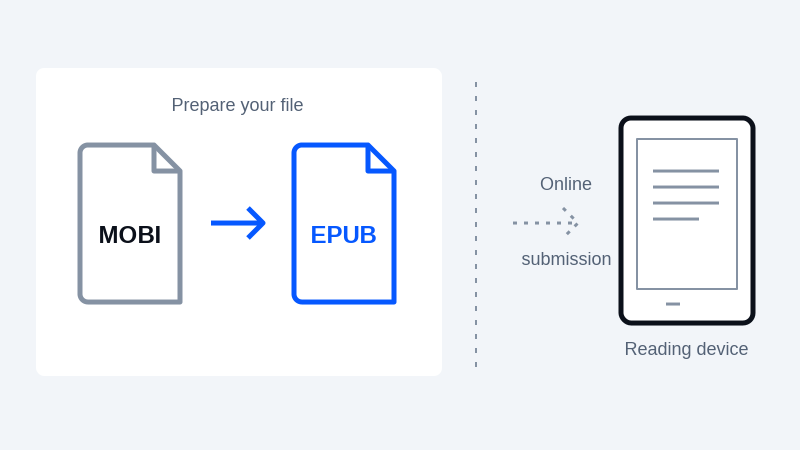
Legacy MOBI (.mobi) | Limited legacy support | Convert DRM-free text books with MOBI to EPUB for consistent typography and TOC menus | Browser conversion creates a text edition; inline illustrations and custom fonts may be omitted |
Kindle AZW3 / KF8 (.azw3) | Not supported natively | Convert supported DRM-free text inputs via AZW3 to EPUB or desktop Calibre | Complex multi-column KF8 CSS and embedded illustrations require a desktop workflow if essential |
FictionBook (.fb2) | Supported on many Kobo builds | Read directly or convert via FB2 to EPUB for unified library metadata | Check footnotes and Cyrillic/UTF-8 character rendering after conversion |
How to convert MOBI or AZW3 to EPUB for Kobo in four steps
- Back up your untouched source file: Save a copy of the original DRM-free
.mobior.azw3ebook on your computer before running any conversion. - Convert locally in your browser: Open the MOBI to EPUB converter for Mobipocket files or the AZW3 to EPUB converter for supported KF8 files, verify the detected title and author metadata, and download the generated
.epub. - Run an OCF & reading preflight: Optionally verify the archive in the EPUB Preflight Checker (checking uncompressed
mimetypeat byte offset 30 andMETA-INF/container.xml) and open a middle chapter in a desktop reader. - Sideload and eject cleanly: Connect your Kobo over a data-capable USB cable, copy the checked
.epubinto the root drive (or a dedicated books subfolder), use your operating system's safe-eject command, and wait for Kobo's on-screen import bar to finish indexing.
Standard EPUB vs KEPUB (.kepub.epub) on Kobo
Kobo includes two internal rendering engines on modern firmware: Adobe RMSDK for standard .epub files and Kobo's WebKit-based Access renderer for .kepub.epub files. Standard EPUB works immediately over USB with zero plugins and honors clean typography across Kobo, PocketBook and Apple Books alike (compare all devices in the Ebook Format Selector).
KEPUB adds extra span wrappers used by Kobo's per-chapter reading-time graphs and image zoom viewer. If you manage a large desktop library and want KEPUB statistics or complex illustrated preservation, consult Calibre's conversion documentation. This website produces standard DRM-free EPUB text editions rather than Kobo-proprietary KEPUB wrappers.
Troubleshooting books that do not appear in "My Books" after USB transfer
When a sideloaded EPUB fails to show up on a Kobo after unplugging the USB cable, walk through three separate checks instead of reconverting blindly:
- Database corruption from unplugging without ejecting: Always eject the Kobo volume cleanly so SQLite writes complete before disconnecting the cable.
- Invalid OCF ZIP packaging: If the EPUB was zipped manually in Finder or Windows Explorer, test it in our EPUB Mimetype Error repair guide to ensure
mimetypesits uncompressed at offset 30. - Garbled punctuation or missing TOC entries: If chapters appear out of order or smart quotes render as
’, follow the EPUB Table of Contents & encoding repair checklist.
Moving books in the opposite direction (Kobo EPUB to Kindle)
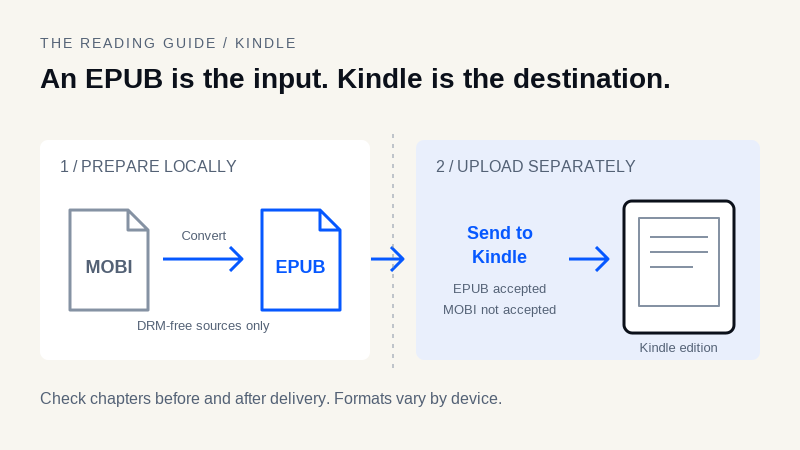
If you share DRM-free personal documents across both a Kobo and a Kindle, keep your clean EPUB as the master archive. For wireless Kindle delivery, upload that same EPUB directly through Amazon Send to Kindle (explained in Does Kindle Support EPUB?). For direct Kindle USB transfer, build a separate KF8 copy with EPUB to AZW3.
Pre-flight checklist before deleting your source copy
- Original DRM-free
.mobior.azw3master is archived safely. - Converted
.epubpasses local reading checks on chapter 1, a middle chapter and the final page. - Kobo table-of-contents drawer opens every chapter in the expected order.
- Font family, font size and margin sliders respond normally on the Kobo screen.
- Any book requiring inline diagrams or complex CSS was compared against a desktop conversion tool.
Frequently asked questions
Does Kobo read MOBI and AZW3 files without conversion?
Kobo firmware does not support Amazon AZW3 (KF8) or KFX natively. While some Kobo models open basic DRM-free MOBI files, converting supported DRM-free MOBI or AZW3 books to standard EPUB gives much more reliable chapter navigation and typography controls.
Can I convert DRM-protected Kindle purchases for Kobo here?
No. This browser converter works only with DRM-free ebooks you have permission to convert and never removes digital rights management.
Do I need KEPUB instead of standard EPUB on Kobo?
No. Standard reflowable EPUB works natively on every Kobo e-reader over USB. KEPUB is optional and mainly adds Kobo-specific per-chapter reading statistics and image zoom behavior via desktop tools.
Will MOBI or AZW3 to EPUB conversion keep every embedded image and font?
Not necessarily. This browser converter produces a text-oriented EPUB edition with newly generated chapter navigation; original CSS, embedded fonts and inline illustrations can be omitted. Keep your original file and use a desktop tool like Calibre when rich layout fidelity is required.
Keep your original. Try a new format.
Check converter availability and use DRM-free files you have permission to convert.
Open the converter