Will this ebook work on my device?
Pick your e-reader, the file you have and how you move books onto it. The advisor tells you whether to convert, which format to target and which converter to open.
Conversion Required — Format Blocked/Unsupported Target: EPUB. Transfer: Send to Kindle (Email / Web / App).
Recommended format: EPUB
Amazon retired MOBI as a Send to Kindle upload format in late 2022 and asks for EPUB instead. Renaming .mobi to .epub does not rewrite the container; convert a DRM-free copy to EPUB, check it, then upload.
- This upload route accepts .mobi, not .prc. For a DRM-free PRC book, use a tool that explicitly supports PRC to export MOBI or EPUB first; renaming an arbitrary PRC file is not a format conversion.
TOC, encoding & font checklist
- Encoding: books are written as UTF-8. Check accents, curly quotes and non-Latin scripts in a middle chapter after conversion.
- Navigation: new EPUB files include an EPUB 3 nav.xhtml and an EPUB 2 toc.ncx built from the detected chapters. The source book's own contents page is not copied.
- Fonts and styling: conversion creates a text edition. Source CSS, embedded fonts and complex layouts are not preserved; your reader's font settings apply.
- DRM: only DRM-free files can be converted. Keep the original until the delivered copy passes your checks.
E-reader format and transfer compatibility matrix
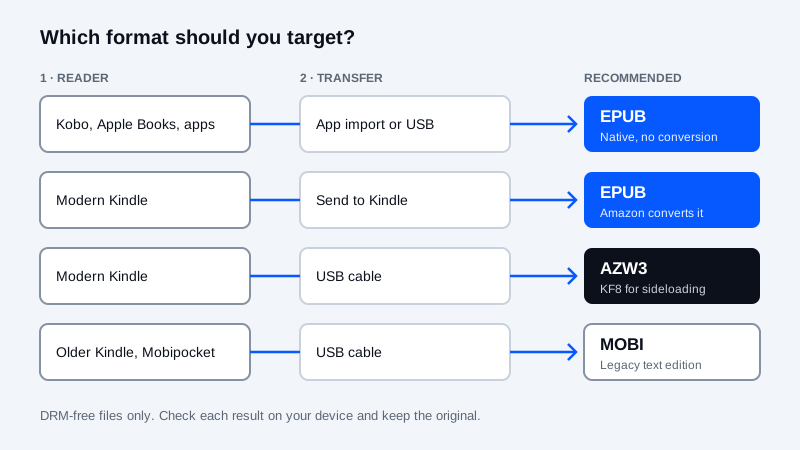
The right ebook format depends on both your reading device and how you transfer the file. Sending a book through cloud delivery (Amazon Send to Kindle) has different format rules from copying a file over a USB cable. Use the interactive selector above or compare device families in the reference table below.
| Device / Reading App | Transfer method | Recommended target format | Key workflow caveat |
|---|---|---|---|
| Kindle Paperwhite, Basic, Oasis, Scribe, Colorsoft | Send to Kindle (Web, App, Email) | EPUB (or PDF for fixed pages) | Send to Kindle accepts EPUB and converts it in the cloud; it rejects legacy .mobi and .azw3 uploads. |
| Kindle Paperwhite, Basic, Oasis, Scribe, Colorsoft | Direct USB cable transfer | AZW3 (KF8) or KFX | Kindle e-readers do not natively open raw .epub files copied into the USB documents folder. |
| Older / Legacy Kindle (Keyboard, DX, 1st–3rd Gen) | Direct USB cable transfer | MOBI (Mobipocket 6) | Pre-KF8 firmware may not open AZW3; use legacy MOBI over USB and keep chapter styling simple. |
| Kobo (Clara, Libra, Sage, Elipsa) | USB sideload or Kobo cloud/drive | EPUB (or kepub / CBZ) | Kobo reads standard DRM-free EPUB, FB2, PDF and CBZ natively; convert MOBI or AZW3 to EPUB first. |
| PocketBook & Tolino | USB, PocketBook Cloud or email | EPUB or FB2 | PocketBook handles both EPUB and FB2 well; convert AZW3 to EPUB so navigation and metadata carry over. |
| Apple Books (iPad, iPhone, Mac) | AirDrop, Files app or iCloud Drive | EPUB or PDF | Apple Books does not open MOBI, AZW3 or FB2 directly; import a validated EPUB 3 package. |
| reMarkable, Onyx BOOX & E-Ink Note Tablets | Device app, cloud sync or USB | EPUB (reflow) or PDF (fixed notes) | Reflowable EPUB can shift handwriting anchors when font size changes; choose PDF when fixed page geometry matters. |
When to convert vs keep your original ebook
Conversion is only helpful when your target device or delivery service rejects your current file format. Every text-oriented conversion parses and rebuilds the book container, which can simplify complex CSS layouts, tables or embedded fonts. Always keep a backup of your original DRM-free file and verify the converted result in your reader.
- Moving MOBI or AZW3 to Send to Kindle, Kobo or Apple Books: use the MOBI to EPUB converter or AZW3 to EPUB converter, then run the EPUB Preflight Checker if you edit the package.
- Loading an EPUB onto a Kindle over USB: convert to KF8 with the EPUB to AZW3 converter for modern Kindles, or the EPUB to MOBI converter for older Mobipocket-generation devices.
- Converting Russian/European FB2 fiction or CBZ manga: use FB2 to EPUB for reflowable text or CBZ to EPUB for fixed-layout comic archives.
Frequently asked questions
Should I convert EPUB to MOBI before using Send to Kindle?
No. Amazon Send to Kindle accepts EPUB directly and no longer accepts MOBI uploads. Only convert EPUB to MOBI when sideloading over a USB cable onto an older Kindle that requires Mobipocket format.
Why does an EPUB copied to my Kindle over USB not show up in my library?
Kindle e-readers do not render raw EPUB files placed in the USB documents folder. Either send the EPUB through Amazon Send to Kindle so Amazon converts it, or convert the DRM-free EPUB to AZW3 (KF8) for USB transfer.
Which format is best for Kobo, PocketBook and Apple Books?
Standard reflowable EPUB is the primary open format across Kobo, PocketBook, Tolino and Apple Books. PocketBook and Kobo also open FB2 and CBZ directly, while Apple Books requires EPUB or PDF.
Can I convert a CBR comic archive directly in the browser?
CBR files are RAR archives, which browser converters here do not decode directly. Extract the permitted CBR locally with an archive utility, verify the image sequence, repackage as a standard ZIP/CBZ, and then use the CBZ to EPUB converter.
Related guides and converters
Does Kindle Support EPUB? · EPUB vs MOBI vs AZW3 vs PDF · EPUB Preflight Checker · Fix EPUB Mimetype Error