Does Kindle support EPUB directly?
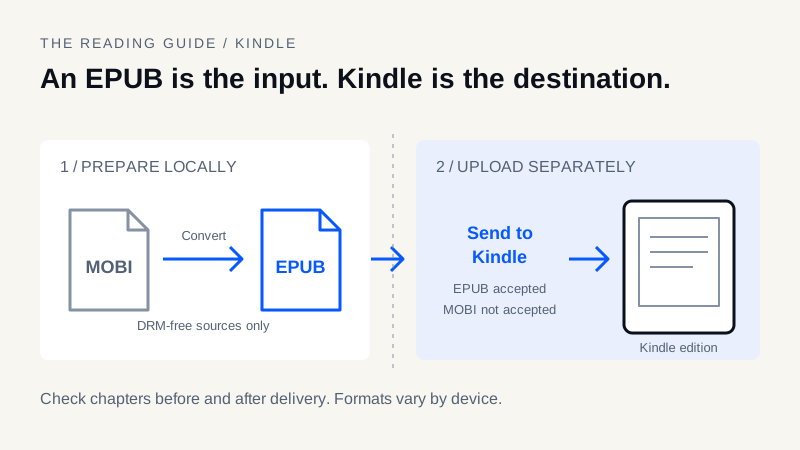
Send to Kindle accepts EPUB as an input format; that is not the same as native EPUB support over USB. Amazon processes the submitted document for reading in the Kindle ecosystem. Copying the original EPUB into a Kindle e-reader's documents folder is a different workflow and should not be assumed to work. Consult the instructions for the specific device and firmware before choosing a USB format.
The Amazon Send to Kindle portal lists EPUB and PDF among its supported file types. MOBI is not on that list. Amazon's internal delivery format can depend on the device and processing path; an EPUB upload does not promise a downloadable AZW3 or KFX file. This guide concerns personal documents, not the separate KDP publishing process.
How to send EPUB to Kindle: the checked-file workflow
- Start with an EPUB you created, a public-domain book, or a DRM-free copy you have permission to use. Keep the original file untouched.
- Open it in an EPUB reading application. Check the title, author, chapter order, punctuation, cover and any diagrams before uploading.
- Sign into Send to Kindle with the Amazon account used by your intended reader. Select the checked EPUB and review the library or destination options shown.
- Submit the file, allow processing to finish and sync the connected Kindle. Look for the document in the relevant library filter; an upload confirmation does not prove that every page rendered correctly.
- Open the delivered copy. Try the contents menu, a chapter in the middle, the final page, font resizing and any important images. Keep your source until those checks pass.
Amazon's web portal currently lists a maximum file size of 200 MB. That is a web-upload limit, not a rule for every delivery channel. If the file is larger, first check for unnecessarily oversized artwork in a copy; do not delete meaningful illustrations simply to make an upload succeed.
Send EPUB to Kindle by email or USB: different paths
| Delivery path | What you supply | Important distinction |
|---|---|---|
| Send to Kindle web | A supported EPUB or other accepted file | Amazon receives and processes the document |
| Send to Kindle email | Supported attachment from an approved sender | Account approval and email limits apply separately |
| USB sideloading | A format the specific Kindle supports locally | Copying an EPUB is not the cloud conversion step |
| Another EPUB reader | The original checked EPUB | Its own layout and navigation support apply |
For email, use the account's Send to Kindle address and approve the sending address in Personal Document Settings. Follow Amazon's email instructions, including the currently applicable attachment requirements. Do not confuse your ordinary account email with the device's Send to Kindle address. Forwarding the same rejected attachment repeatedly does not repair it.
Can you send MOBI to Kindle now?
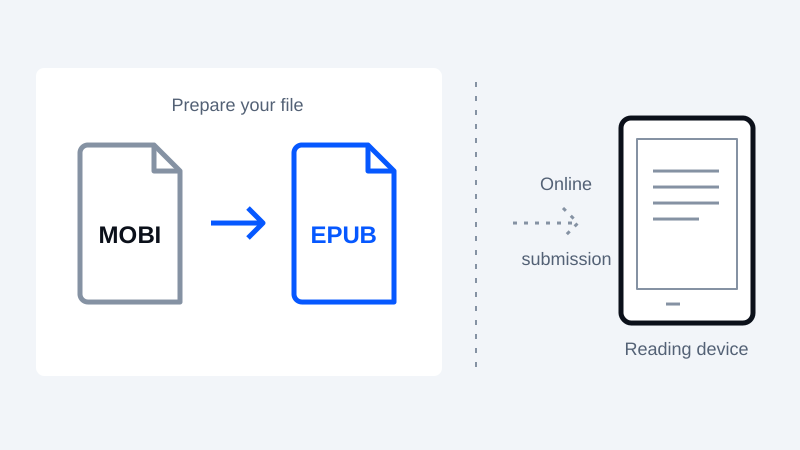
For the Send to Kindle service, prepare an EPUB instead of submitting a MOBI attachment. Historical Kindle MOBI support on a device does not make MOBI an accepted upload format today. Renaming a file from .mobi to .epub only changes its name; it does not rewrite the container.
For a supported DRM-free text book, use the MOBI to EPUB converter, review the detected metadata and download a new EPUB. This site's parser handles supported MOBI-family inputs, not every compression variant. It produces a text-oriented edition and may lose illustrations, links or complex styling. It cannot remove DRM. If those features matter, compare a dedicated desktop workflow against the original before sending anything.
Local conversion and cloud delivery are separate privacy decisions. The conversion step processes your book in your browser; choosing Send to Kindle uploads the resulting file to Amazon. Read the local-processing policy for the site's analytics and reader-storage disclosures.
When AZW3 to EPUB conversion helps
A DRM-free AZW3 file intended for a compatible Kindle over USB may need an EPUB edition for another reader or for the Send to Kindle input workflow. The AZW3 to EPUB converter accepts supported text-oriented inputs; it is not a full-fidelity KF8 reconstruction tool. Test a representative chapter and any complex content before converting an entire library.
If the existing AZW3 already works by your preferred USB workflow, conversion may add no benefit. The EPUB, MOBI, AZW3 and PDF comparison helps separate storage format, conversion loss and delivery method.
Diagnose a rejected or damaged EPUB
Read the actual rejection message before changing the file. Confirm the selected attachment is the downloaded EPUB, the account and destination are correct, and the file fits that channel's limits. If another EPUB opens normally but this one does not, inspect the book rather than repeatedly changing account settings.
Run EPUBCheck for structural errors using an appropriate local installation. MobiToEpub does not run EPUBCheck automatically. A passing validation report does not guarantee Amazon acceptance or visual fidelity. For missing chapter links or garbled punctuation, follow the navigation and encoding repair guide.
Before you delete the original
- The EPUB opens before upload and the delivered copy opens on the intended Kindle.
- Title, author, chapters and the final page match the source.
- Accents, quotation marks, images and tables remain understandable.
- The contents menu and font-size controls work for this type of book.
- You have kept a backup and understand that cloud submission uploads the book to Amazon.
Test the actual destination: successful conversion, successful upload and comfortable reading are three different checks.
Frequently asked questions
How to send EPUB to Kindle without a USB cable?
Check the EPUB in a reader, then use Amazon Send to Kindle on the web or an approved email delivery method. Amazon processes the upload for Kindle reading; inspect the delivered copy as well as the original.
Can I send EPUB to Kindle by copying it over USB?
Do not assume so. EPUB acceptance by Send to Kindle is a cloud input workflow, not a promise of native EPUB support on a Kindle e-reader. Check the specific device and use a compatible USB format.
Can I still send MOBI to Kindle using the email service?
MOBI is not on the current Send to Kindle supported-format list. Convert a permitted DRM-free copy to EPUB and check it first. Renaming the extension does not convert the file.
Should I use AZW3 to EPUB conversion before Send to Kindle?
It can be useful for a supported DRM-free AZW3 source when you need an EPUB input. Keep the original because text-oriented conversion can lose resources or layout; an existing working USB edition may not need conversion.
Keep your original. Try a new format.
Check converter availability and use DRM-free files you have permission to convert.
Open the converter