Choose a format for the next reading step
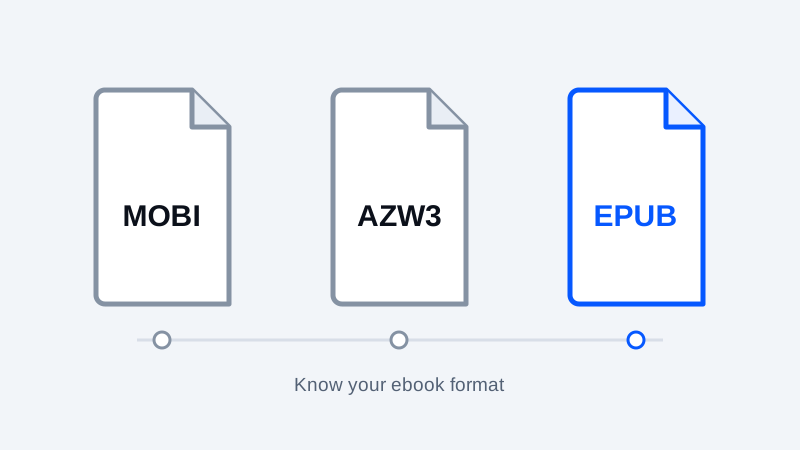
MOBI, AZW3 and EPUB refer to different ebook formats, but the best choice depends on what you are doing next. Opening a file already stored on a device, sending it through a delivery service and submitting a book for publication are different workflows. Check the receiving system rather than relying on a file extension alone.
Keep your source book when converting. A conversion can change layout or lose resources, and another reader may handle the original better.
MOBI: an older library format
MOBI files remain common in older personal libraries. A file with that extension may contain a variant that a particular parser does not support. Renaming it does not change the internal format, and a file that once worked on a device may not be accepted by a current upload service.
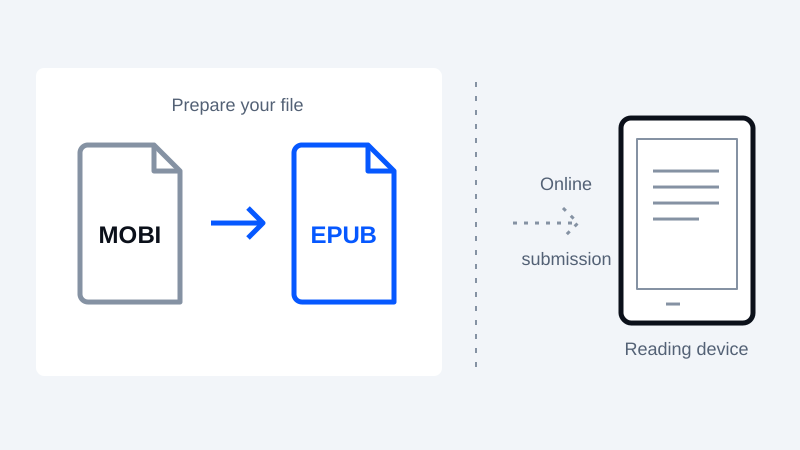
For an ordinary text-based book, creating an EPUB can provide another reading option. Inspect the result, especially chapter order, punctuation, non-English characters and any content that was not plain text.
AZW3: a Kindle-oriented format
AZW3 is associated with Kindle Format 8. Support depends on the reader and how the file reaches it; do not assume every application that reads EPUB also reads AZW3. DRM protection is a separate issue from the extension.
MobiToEpub's current parser accepts supported DRM-free MOBI-family inputs but does not implement every compression variant or complete reconstruction of complex KF8 layouts. For a book whose styling, images or resources matter, compare an external conversion workflow and inspect its output carefully.
EPUB: a structured publication container
EPUB packages publication content and resources, including HTML and CSS, together with metadata and reading order. Its specification supports more than a simple text document, but an individual book must actually contain the needed structure and resources. W3C EPUB specification
An EPUB extension does not certify accessibility, correct navigation or visual quality. Features also depend on the reading system. A structural validator and a real reading test answer different questions; use both when preparing a book for distribution.
Match the workflow to the destination
| Goal | A useful starting point | What to verify |
|---|---|---|
| Send a personal document to Kindle | Check Amazon's supported Send to Kindle formats; EPUB is listed | Account, delivery method, file limits and acceptance |
| Read a book in an EPUB app | A checked EPUB copy | Chapters, resources, text and navigation |
| Retain a complex illustrated layout | An authoring or desktop conversion workflow | Images, fonts, tables and reading order |
| Use an older reader | Its own supported-format documentation | Exact device and firmware behavior |
Amazon's Send to Kindle supported formats are not the same thing as a universal native-file compatibility list for every Kindle. Amazon delivery documentation
Convert only when there is a reason
If a book already reads correctly in your chosen application, conversion may add no benefit. If the destination rejects its format, convert a copy and test that specific destination before changing the rest of the library.
The MOBI to EPUB converter can be useful for supported DRM-free text books. The EPUB to MOBI converter creates a legacy MOBI 6 text edition for compatible readers and USB transfer; complex layouts and illustrations are not preserved. Use EPUB, not MOBI, for Send to Kindle. For broader input and output handling, consult Calibre's conversion documentation and verify the feature you need. No tool can recover artwork or text that was absent from its source.
Keep your original. Try a new format.
Check converter availability and use DRM-free files you have permission to convert.
Open the converter