Why zipping an EPUB folder in Finder or Explorer breaks the book
An EPUB file uses the ZIP container format, so renaming .epub to .zip and extracting the archive is a normal way to inspect stylesheets, fonts or chapter XHTML files. The problem starts when you re-compress the folder with a general-purpose desktop archiver such as macOS Finder ("Compress") or Windows File Explorer ("Send to Compressed folder").
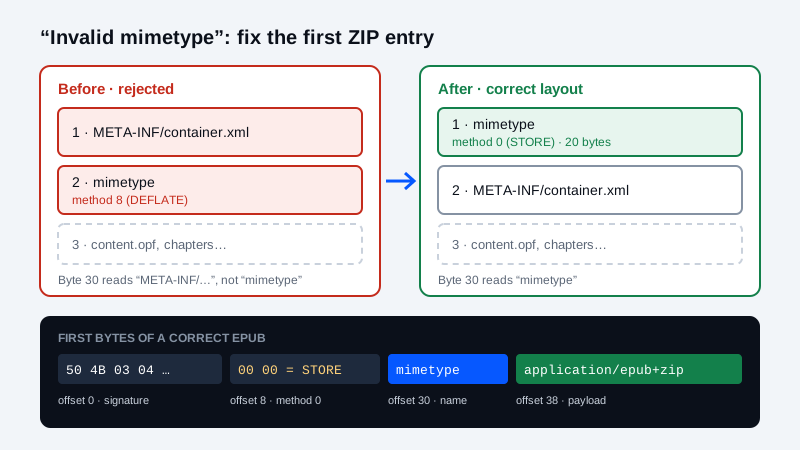
An Open Container Format (OCF) publication is not an arbitrary ZIP archive. Under the W3C EPUB 3.3 OCF ZIP Container specification, a valid EPUB must place a file named mimetype as the very first entry in the archive, store it uncompressed (STORE, compression method 0), omit any local ZIP extra fields on that first header, and write the exact 20-byte ASCII string application/epub+zip starting at byte offset 38 (immediately after the 30-byte local file header and the 8-byte filename mimetype).
| OCF packaging rule | Expected byte / archive value | What breaks when violated |
|---|---|---|
ZIP signature at offset 0 | 50 4B 03 04 (PK\x03\x04) | File is not a ZIP archive (for example, a renamed MOBI, RAR/CBR or PDF) |
First entry filename at offset 30 | mimetype (exact 8 ASCII bytes, no parent folder) | Desktop archivers sort META-INF/ or a parent wrapper folder ahead of mimetype |
| First entry compression method | 0 (STORE, uncompressed) | Archivers default to 8 (DEFLATE), scrambling the magic-byte signature |
| First entry extra-field length | 0 bytes | OS metadata or extended timestamps shift the payload past byte offset 38 |
First entry payload at offset 38 | application/epub+zip (exact 20 bytes, no newline) | Trailing \n, \r\n or UTF-8 BOM changes the payload length to 21+ bytes |
| Container pointer | META-INF/container.xml with <rootfile full-path="..."> | Reading systems cannot locate the OPF package document |
Diagnose the archive in your browser before repacking
Before running command-line flags or re-exporting a manuscript, test the broken file in the interactive EPUB Preflight Checker or the inspector embedded at the end of this guide. The browser-only inspector reads the local ZIP central directory and byte offsets 0..58 without uploading your book, showing immediately whether mimetype was deflated, shifted by a ZIP extra field, or buried inside a subfolder.
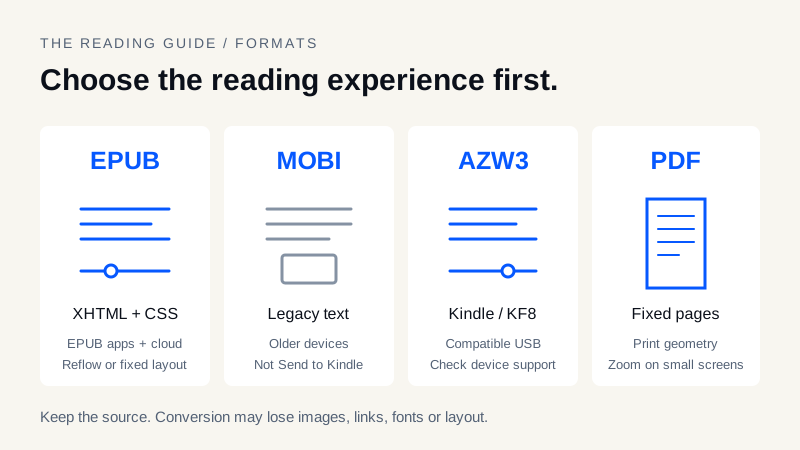
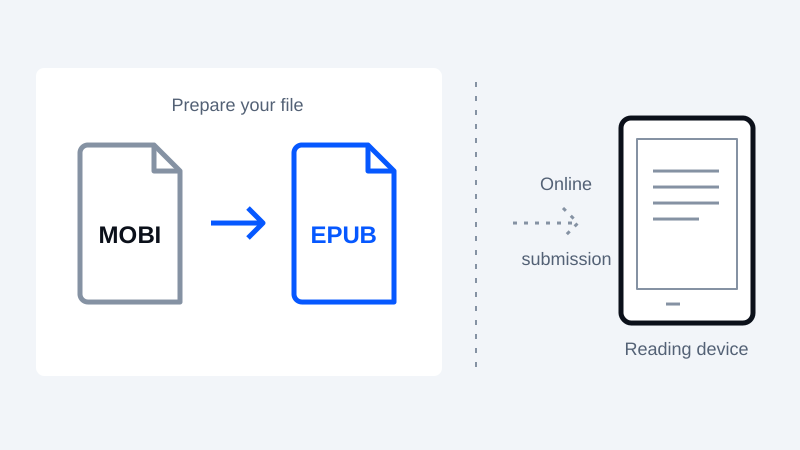
If your source book is still in an older Kindle format or another ebook container, use the Ebook Format Selector to check which format your target device requires, or convert a DRM-free source directly with the MOBI to EPUB converter so the browser builds the OCF container in the required order.
Fix 1: Repack the EPUB with zip -0 -X so mimetype sits at offset 30
When repackaging an extracted EPUB folder from the command line, always run zip from inside the directory that directly contains mimetype, META-INF/ and OEBPS/ (never from the parent directory outside it). Create the archive in two steps:
- Write
mimetypefirst with zero compression and no extra fields: runzip -0 -X ../repaired-book.epub mimetype. Flag-0forcesSTORE(compression method0), and-Xstrips operating-system extra fields so the filename begins at byte offset 30 and the 20-byteapplication/epub+zippayload begins at byte offset 38. - Append
META-INF/and the content directory recursively: runzip -r -9 -X ../repaired-book.epub META-INF OEBPS -x "*.DS_Store" "__MACOSX/*". Those remaining entries can use standardDEFLATEcompression without disturbing the first header.
Verify that the mimetype file itself contains exactly 20 bytes with no trailing newline. If a text editor appended a line break, rewrite it without a newline before running the first zip command.
Fix 2: Remove parent folder wrappers and check META-INF/container.xml
A second common failure happens when a user compresses the outer folder my-book/ instead of its contents. That produces archive paths like my-book/mimetype and my-book/META-INF/container.xml. Even if mimetype were uncompressed, its filename in the local header would be my-book/mimetype (16 bytes instead of 8), and no reading system will find META-INF/container.xml at the root of the archive.
Open META-INF/container.xml and confirm these three requirements:
- The file path inside the ZIP is
META-INF/container.xmlwith uppercaseMETA-INFand lowercasecontainer.xml— ZIP entry paths in EPUB are case-sensitive. - It contains a
<rootfile full-path="..." media-type="application/oebps-package+xml"/>element whosefull-pathmatches the exact case and directory of your.opfpackage document (such asOEBPS/content.opforEPUB/package.opf). - The referenced
.opffile actually exists at that exact path in the ZIP archive and does not start with a leading slash.
Fix 3: Check OPF manifest, spine and NCX/nav consistency after container repair
Fixing the OCF container gets your EPUB past the initial signature check, but Amazon Send to Kindle and strict readers also inspect the OPF package document that META-INF/container.xml points to. Review our EPUB table of contents and character encoding repair guide if the book still fails after repacking.
In particular, verify that every file referenced in the OPF <manifest> is present in the ZIP archive with identical capitalization, every idref in the <spine> matches a manifest id, and at least one navigation document (properties="nav" in EPUB 3 or an NCX table of contents in EPUB 2) is declared.
Verify with the preflight inspector and EPUBCheck before delivery
Once your repackaged file is ready, run both a fast structural preflight and a full specification check before sending the book to a reader:
- Drop the repaired
.epubinto the EPUB Preflight & Container Inspector below to confirm all six OCF container checks pass in your browser. - Run the official W3C EPUBCheck validator locally to verify XHTML markup, CSS rules and OPF metadata schemas beyond the OCF container header.
- If your destination is an older Kindle over USB rather than Send to Kindle (see our Kindle EPUB and Send to Kindle guide), convert the validated EPUB using the EPUB to AZW3 converter or the legacy EPUB to MOBI converter.
- Original EPUB backup is saved before editing or repacking.
- Bytes 0..3 are
50 4B 03 04and the archive is a real ZIP container. - First ZIP entry is
mimetype(8 bytes) at offset 30 with extra-field length0. -
mimetypeuses compression method0(STORE) and equalsapplication/epub+zip(20 bytes, no newline). -
META-INF/container.xmlexists at the archive root and points to an existing.opfpackage document. - Repacked EPUB passes both the browser OCF preflight check and local EPUBCheck validation.
Check an EPUB’s packaging before you convert or send it
Scope: Basic OCF packaging preflight only — not official W3C EPUBCheck certification, DRM removal, or guaranteed Amazon Send-to-Kindle acceptance.
Readers reject an EPUB when its ZIP container is assembled in the wrong order. Try a sample package or check your own file — it is read locally in your browser and not uploaded.
Packaging problem found Result for Deflated mimetype (Compression=8 Error). 1 packaging check failed.
Result for Deflated mimetype (Compression=8 Error)
1 packaging check failed. 1,258 bytes, 4 ZIP entries.
- Pass ZIP local file header signature (PK\x03\x04)
Starts with 50 4B 03 04 (ZIP local file header). - Pass First entry is “mimetype” at byte offset 30
“mimetype” is the first entry (name at byte 30, payload at byte 38). - Fail “mimetype” is stored uncompressed (method 0)
Compression method 8 (DEFLATE). OCF requires “mimetype” to be stored uncompressed. - Not checked “mimetype” payload is exactly application/epub+zip
Not checked: compressed bytes are not readable as plain text without inflating. - Pass META-INF/container.xml and an .opf package document exist
Found META-INF/container.xml and OEBPS/content.opf. - Pass No unsafe archive paths (../, absolute or drive paths)
4 entries with relative paths. - Pass No encryption or DRM markers
No META-INF/encryption.xml or encrypted ZIP entries.
Next step
Frequently asked questions
Why does EPUBCheck report PKG-006 or PKG-007 on my EPUB?
PKG-006 and PKG-007 mean the mimetype file is either missing from the first position in the ZIP archive, compressed with DEFLATE instead of STORE, shifted by a non-zero ZIP extra field, or does not equal the exact 20-byte ASCII string application/epub+zip without a newline.
Can I rename a .zip file back to .epub after compressing a folder in Finder or Windows Explorer?
Renaming .zip to .epub only works if the ZIP archive was created with mimetype stored uncompressed first and without a parent wrapper folder. Standard desktop Compress commands deflate every entry and usually sort META-INF first, which causes strict EPUB validators and Send to Kindle to reject the file.
Why must mimetype have zero extra-field bytes in the local ZIP header?
So reading systems and file-type detectors can read the fixed 8-byte filename mimetype at byte offset 30 and the 20-byte string application/epub+zip at byte offset 38 without parsing variable-length OS metadata.
Does passing the OCF mimetype and container.xml check guarantee Send to Kindle acceptance?
No. OCF packaging is the first gate. Send to Kindle also parses the OPF manifest, spine order, navigation documents and XHTML chapters. Use the OCF preflight inspector first, then run local EPUBCheck if a layout or markup error remains.
Keep your original. Try a new format.
Check converter availability and use DRM-free files you have permission to convert.
Open the converter